

Event Node
Event Nodes are your timeline anchors. Use them to log what happened, when it happened, and how confident you are in the source. Each node keeps the essentials—date, description, source, and confidence—so you can build credible sequences without leaving the graph.What goes in an Event Node?
Event Nodes store structured timeline facts:- Event name – Headline for the milestone you are tracking
- Event date – Exact or estimated date with calendar picker support
- Description – Short narrative or summary of what occurred
- Source – Where the information came from (report, witness, system log)
- Confidence – Your assessment of how reliable the event is
- Notes – Additional context, follow-up tasks, or verification status
When you’ll use these
Build incident timelines
Plot every key action in chronological order to understand how an incident unfolded.
Verify claims
Log reported dates and cross-check them against independent sources or evidence.
Coordinate responses
Track internal decisions, escalation points, and handoffs alongside related nodes.
Document external events
Capture third-party announcements, regulatory filings, or public disclosures that impact your case.
How to add an event
1
Create the event node
Grab the Event tool from your sidebar and click your graph where you want the timeline card to appear.
2
Enter the headline details
Open the options panel (gear icon) and set the core fields:
- Event Name – Short label that appears in the card header
- Event Date – Pick the date from the calendar picker or clear it if the timing is still unconfirmed
3
Document what happened
Use the description area to summarize the milestone. Add supporting metadata when available:
- Source – Report, witness, system log, or other reference
- Confidence – High, Medium, Low (or your custom scale)
4
Add investigation notes
Record follow-up actions, verification status, or related context in the notes field. Line breaks and bullet lists stay readable inside the card.
Connecting events to everything else
Events shine when you link them to the people, organizations, and artifacts involved. Keep them close to the entities that triggered or verified the milestone.Common investigation patterns
Sequence reconstruction
Lay out a row of Event Nodes between related identifiers, organizations, and files to illustrate cause and effect.
Source comparison
Duplicate an event with different confidence levels to compare conflicting reports from multiple sources.
Incident summary
Pair an Event Node with Notes and File nodes to explain what happened and link supporting documentation.
Example: Mapping a corporate timeline
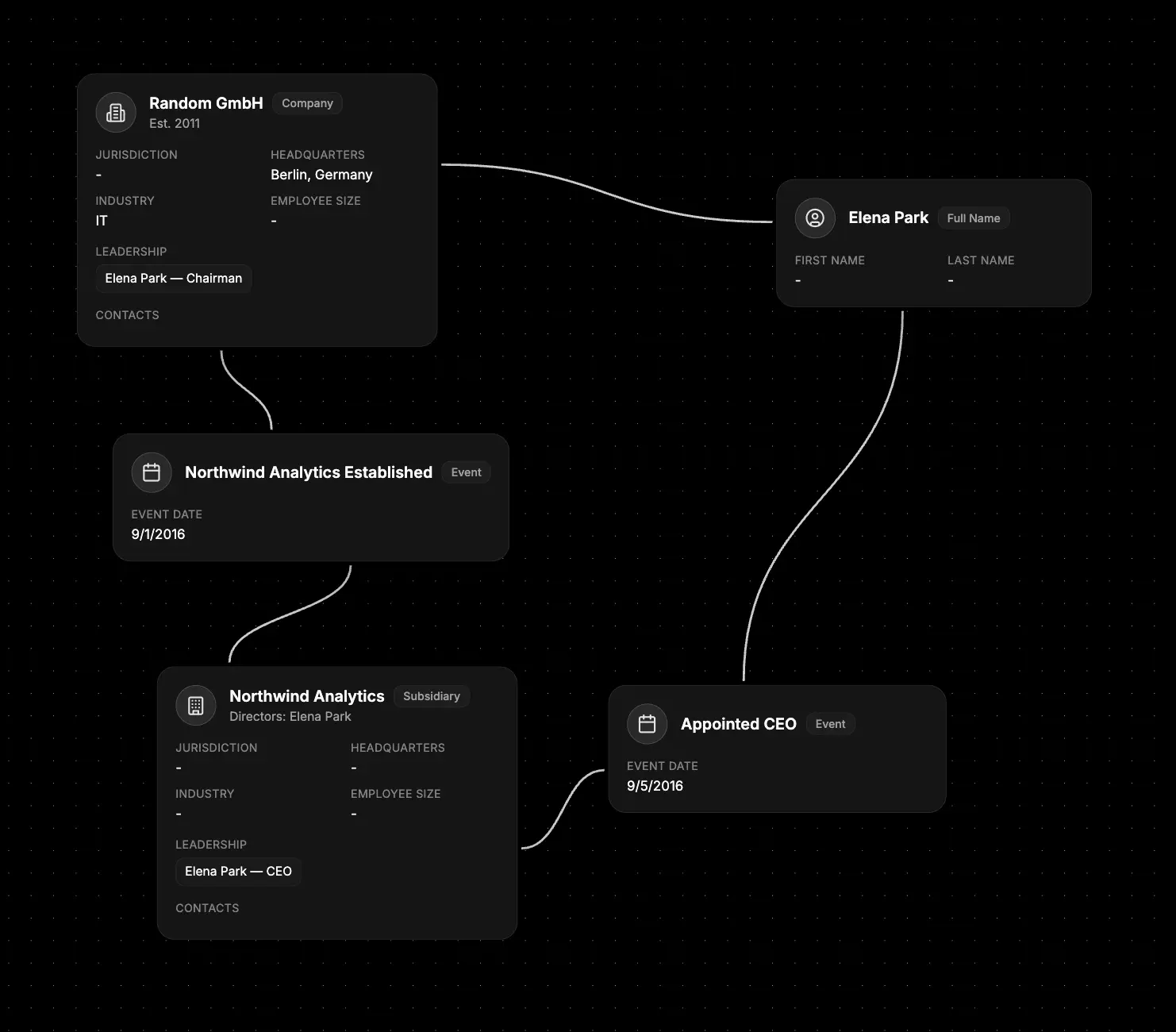
- Log the founding date - Create an Event Node titled “Northwind Analytics Established” with the incorporation date and link it to the primary Organization node.
- Track subsidiary creation - Add a second event “Specter Labs Subsidiary Launched” and connect it to the new subsidiary Organization node to show corporate structure changes.
- Record leadership hires - Capture “Elena Park Appointed CEO” with the announcement source and confidence so ownership and management shifts stay visible.
- Document divestitures - Create “Specter Labs Sold” with the sale date, buyer, and supporting filings in the source field to illustrate exit activity.
- Summarize follow-up actions - Use the notes field across these events to outline regulatory notifications, board approvals, or due diligence steps still in progress.
What else to connect
- Identifier – Tag investigators, victims, or reporters tied to the event.
- Organization – Link the companies or agencies impacted by the milestone.
- Module – Reference reverse search findings that led to the event discovery.
- Data Leak – Connect confirmed breaches or exposure records.
- File – Attach incident reports, legal notices, or forensic exports.
- Notes – Track decisions, verification status, or communication plans related to the event.