

Shapes Node
Use the Shapes node whenever you need to mark OSINT findings directly on the investigation canvas. Outline suspicious infrastructure, spotlight emerging links between entities, or sketch analytic hypotheses without switching tools. Every markup stays tethered to the graph so teammates interpret the same visual signals while reviewing the case.What the Shapes node stores
Shapes nodes remember lightweight drawing settings so you can revisit or tweak annotations later without losing investigative context:- Shape type – Rectangle, circle, line, triangle, or freehand paths
- Control points – Coordinates that define corners, endpoints, and resize handles
- Stroke styling – Outline color and stroke width (including freehand brushes)
- Fill color – Transparent by default, but ready for quick emphasis on closed shapes
When you’ll use these
Shapes nodes shine when you need to:Highlight threat surfaces
Outline suspicious facilities, staging areas, or network nodes on top of your Map overlays so analysts focus on the right targets.
Explain analytic flows
Sketch kill-chain progressions, escalation paths, or decision branches to communicate how indicators relate inside the graph.
Annotate digital evidence
Layer freehand callouts on screenshots, documents, or sensor captures to preserve the insight that text fields cannot convey alone.
Track observation zones
Use geofences and measurement lines to document surveillance coverage, convoy routes, or signal collection footprints.
How to add shape annotations
1
Place the Shapes node
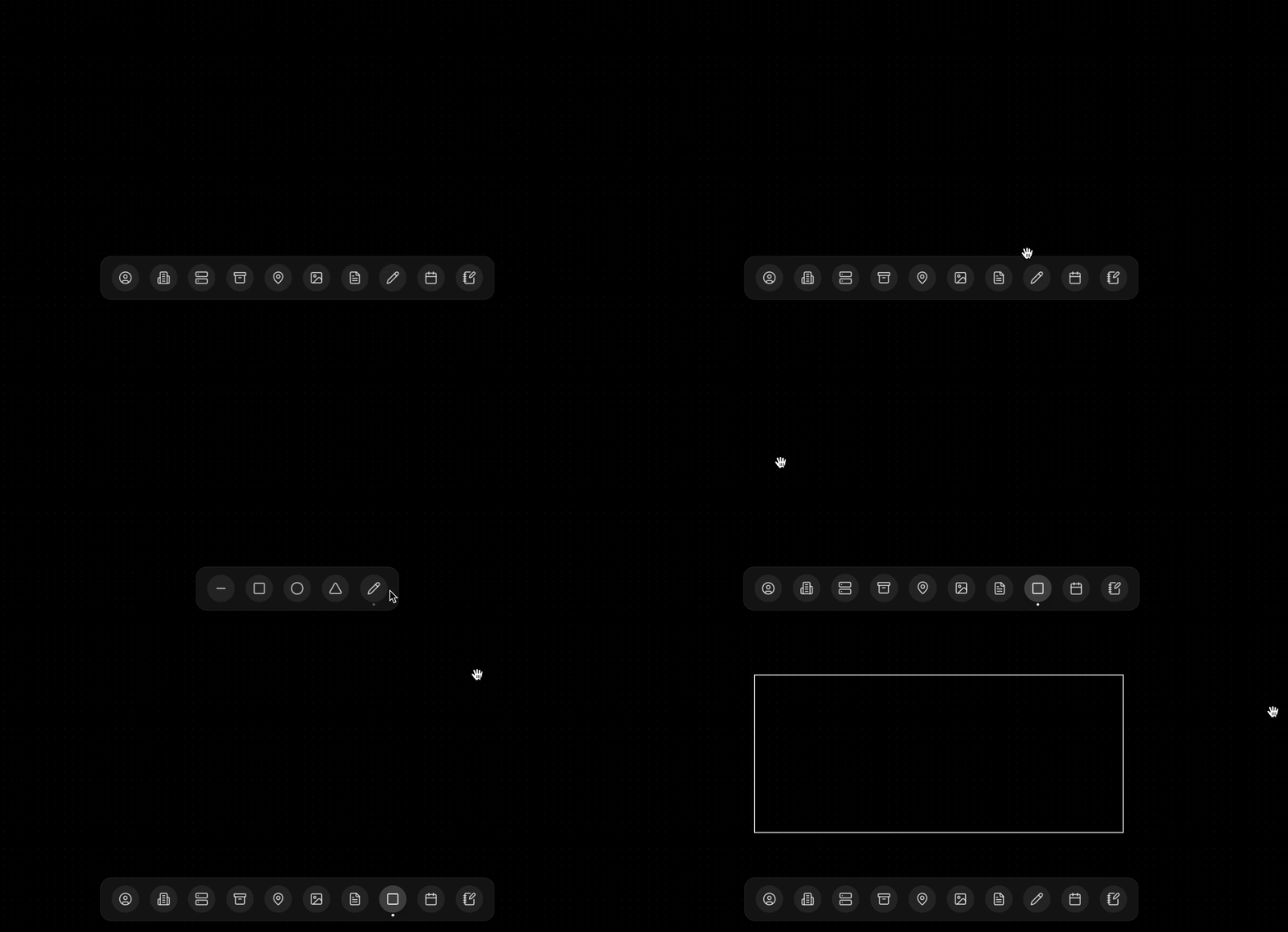
Select Shapes from the Dock and click the canvas. A drawing panel appears with default stroke settings so you can start immediately.
2
Pick your drawing tool
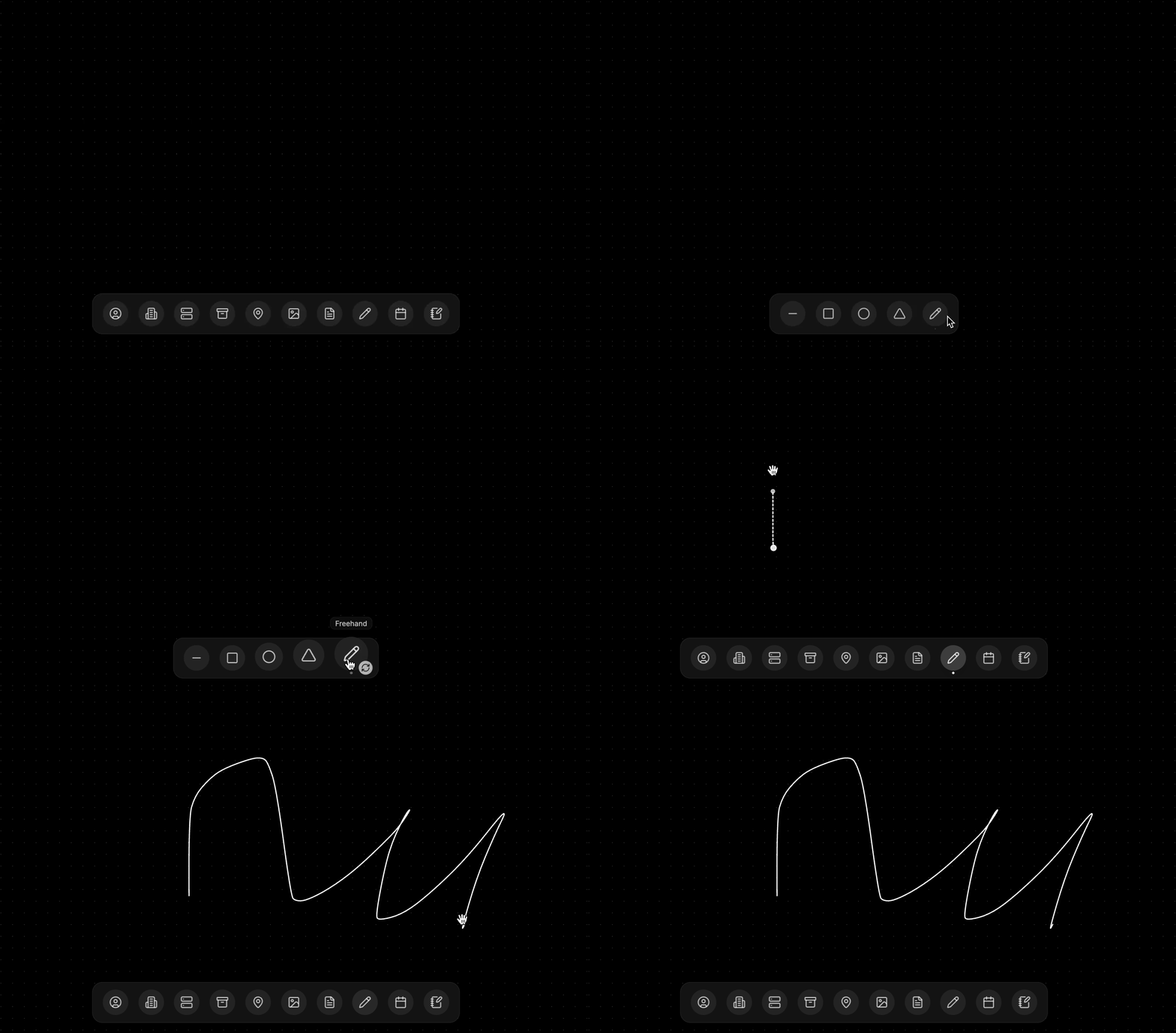
Choose Rectangle, Circle, Line, Triangle, or Freehand from the toolbar. The cursor previews each option so you know what will land before committing it.
3
Draw the geometry
Click once to set the starting point, then drag to define the opposite corner or path. Release to commit the shape. Freehand drawings capture every cursor movement for smooth curves.
4
Adjust with control points
Select the node to expose draggable handles. Move them to fine-tune width, height, radius, or endpoints. Freehand paths keep a tight bounding box so you can reposition them precisely.
5
Style the outline and fill
Right-click the shape to open the draw context menu and set stroke width, stroke color, and fill color. Use transparency whenever you need to keep underlying nodes visible.
Fine-tune every annotation
Shapes nodes respond to the graph’s zoom level so outlines stay crisp. Freehand drawings smooth their control points automatically, and closed shapes resize cleanly from their control points.- Spotlight intent – Place shapes beside the identifiers, organizations, or modules that require immediate attention so the narrative stays clear.
- Trace movement – Use arrows or segmented lines to show travel corridors, data flows, or message propagation paths.
- Signal status – Apply fill colors to differentiate vetted perimeters from hypotheses still under review.
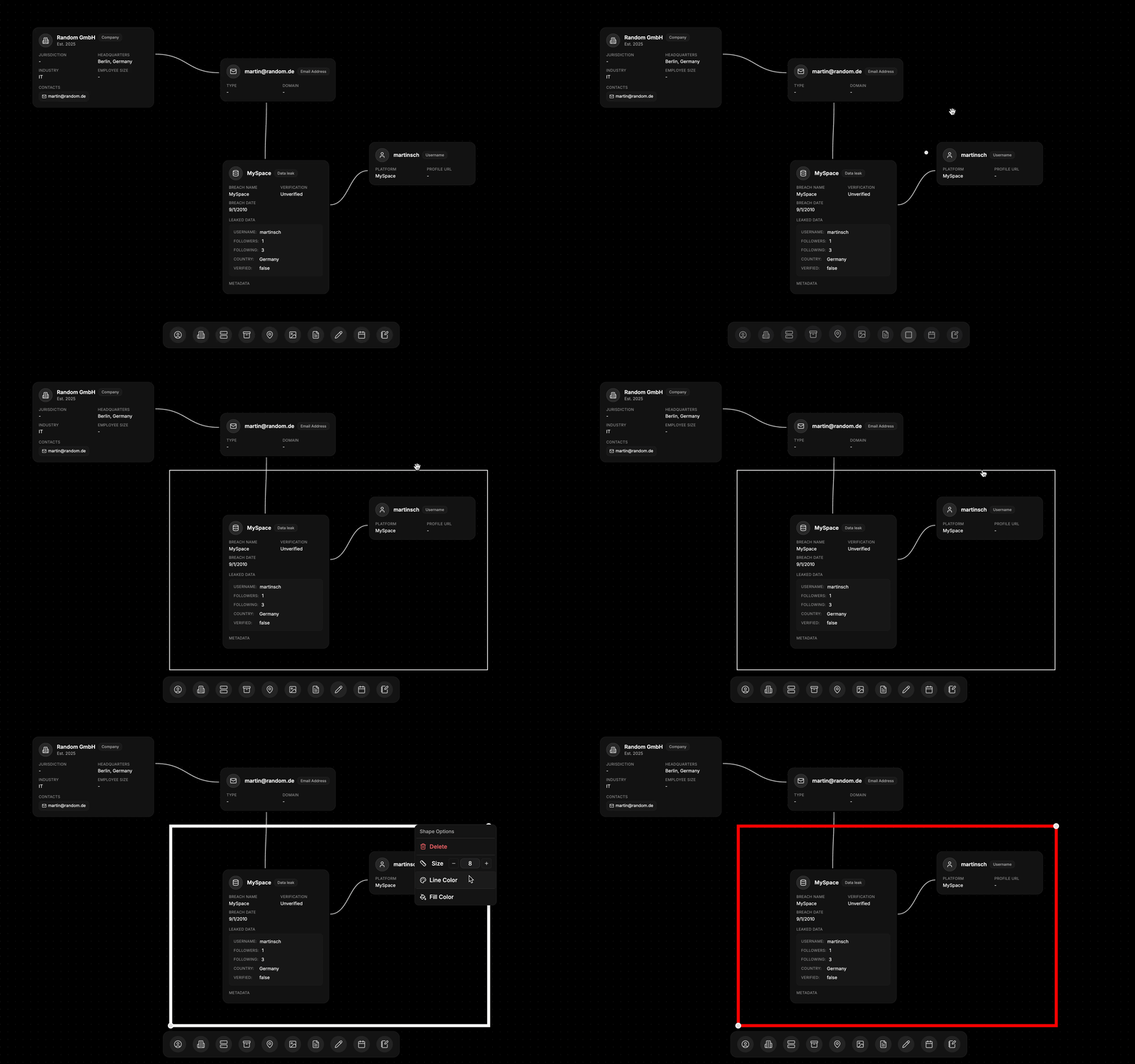
Example: Mapping a coordinated drop site
- Drop the Shapes node near the identifiers tied to the suspected handoff. Keep it adjacent to related Map nodes for context.
- Choose the rectangle tool and box the suspected drop perimeter. Overlay arrows to indicate inbound and outbound routes spotted in surveillance.
- Right-click the rectangle to adjust stroke width, color, and fill so the perimeter stands out without hiding linked evidence.
- Layer supporting notes describing the intel source, confidence level, and next validation steps for the field team.
What else to connect
- Map – Anchor geographic markups to real-world coordinates and basemaps pulled from your OSINT sources.
- Identifier – Tie annotations to people, handles, or numbers that triggered the visual highlight.
- Module – Reference reverse search or platform intelligence that justifies the markup.
- Event – Document the milestone or planned action associated with the annotated zone.
- Notes – Capture assessment commentary, tasking, or watch-list instructions linked to the visual.