

File Node
File Nodes keep your documents and transcripts attached to the investigation graph. Upload evidence, link hosted files, record metadata, and launch dedicated viewers without leaving the canvas.What goes in a File Node?
File Nodes store structured context around any document:- Title and filename – Display name for the node header plus the original file name
- File link – Secure upload or external URL pointing to the asset
- File type and size – Auto-detected extension (PDF/TXT) with readable file size
- Description – Summary of what the document contains or why it matters
- Source and confidence – Track provenance and reliability of the material
- Notes – Investigation comments, follow-up actions, or verification status
When you’ll use these
Document evidence
Store contracts, legal filings, scraped reports, or chat transcripts tied to your case.
Share case packets
Attach exported PDF briefings or TXT transcripts and review.
Track source credibility
Log where documents came from, add confidence levels, and keep due diligence notes nearby.
Link supporting records
Connect files to organizations, identifiers, or events so anyone can jump straight to the evidence.
How to manage files
1
Create the file node
Select the File tool from the sidebar and place it on your graph where the document belongs.
2
Add the document source
Choose how you’re attaching the file:
- Upload File – Import PDFs or TXT documents (up to 10 MB)
- Use URL – Paste a hosted link; the node fetches filename, type, and size when available
3
Describe the record
Set a clear Title and optional Description so teammates know what the document covers at a glance.
4
Capture metadata
Track provenance and quality:
- Source – Where the document originated (platform, contact, archive)
- Confidence – Your assessment of the document’s reliability
- Notes – Verification steps, handling instructions, or action items
5
Launch built-in viewers
If the file is a PDF or TXT, use the View button to open the dedicated viewer window. PDF files open in the PDF Viewer; TXT files open in the TXT Viewer with editing controls.
Connecting files to everything else
Attach File Nodes wherever evidence supports a person, organization, or timeline milestone.Common investigation patterns
Case documentation
Connect legal filings, export packets, and warrants to Organization and Event nodes so your case narrative stays backed by source documents.
Transcript analysis
Link call transcripts or interview summaries to Identifier nodes, then annotate credibility and follow-up actions in Notes.
Threat intel packets
Attach OSINT digests, malware reports, or security advisories to Data Leak and Stealer Logs nodes for quick reference.
Example: Handling a leaked contract
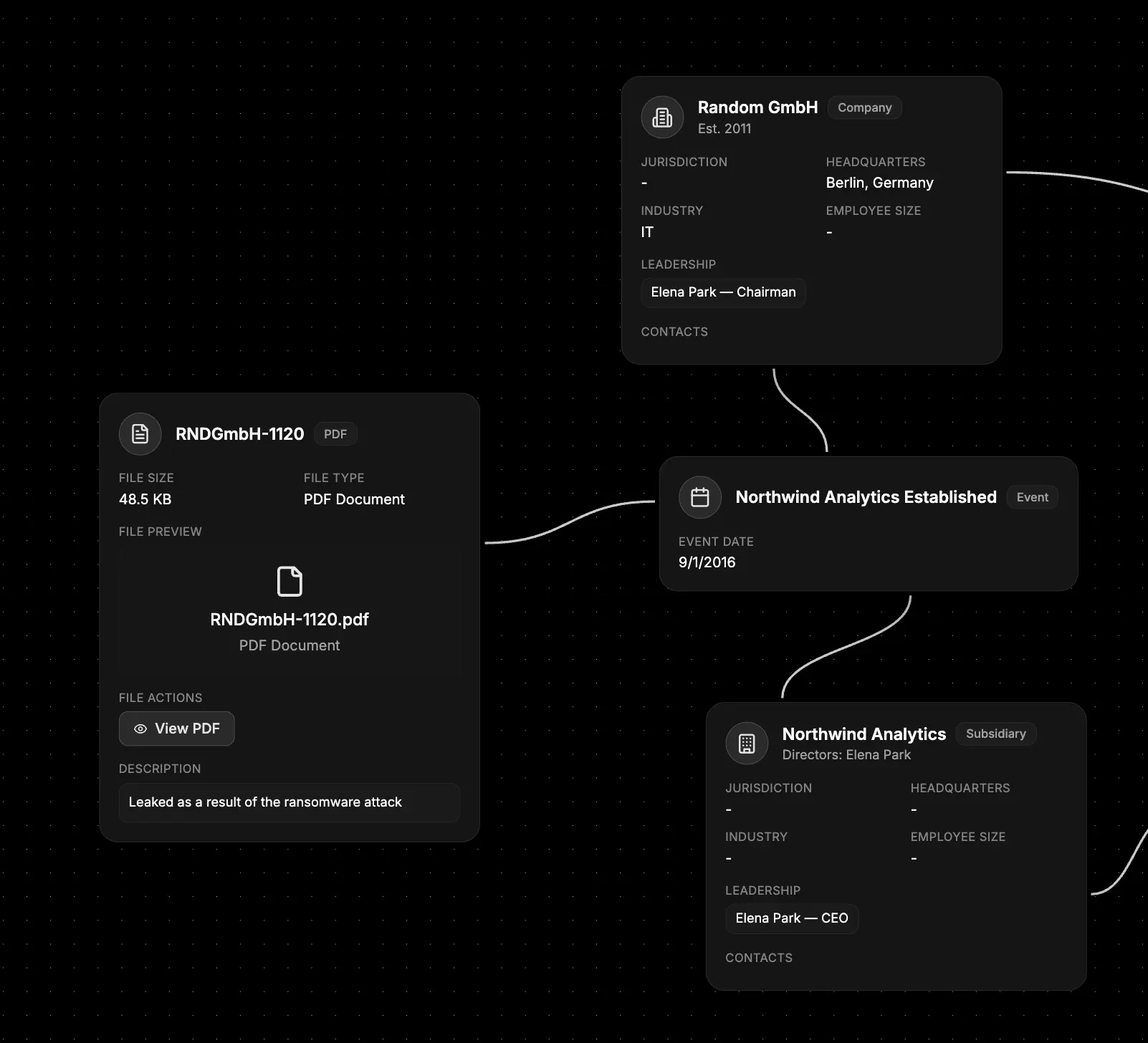
- Upload the PDF - Add the contract with Upload File; the node records filename, type, and size automatically.
- Title and summarize - Name the node “Acquisition Agreement (Leaked)” and describe why the document matters.
- Log source and confidence - Record where the file surfaced (e.g., whistleblower, breach forum) and mark confidence as “Medium” until verified.
- Open the PDF Viewer - Use the View PDF button to open the PDF Viewer for rapid page navigation and highlighting.
- Add follow-up notes - List verification tasks and link the file to the relevant Organization and Event nodes.
What else to connect
- Organization – Attach corporate filings, contracts, or compliance records.
- Identifier – Link CVs, correspondence, or background checks tied to individuals.
- Event – Reference documents that confirm milestones and timeline claims.
- Data Leak – Store breach dumps, credential lists, or investigation exports.
- Image – Pair photo evidence with supporting documents for the same incident.
- Notes – Capture analysis, task lists, or decision logs referencing the file.